When considering manual system defense against internet threats, most of the users come to the question of using the HOSTS file for increased anti-spyware protection, sooner or later. However, the problem of apparent complexity involved when using it sometimes turns away even those interested in protecting their systems manually. It is not very hard and might provide some protection from tracking sites and some other threats.
What is a HOSTS file?
Each time you try to connect to internet address, computer has to determine its numerical address in the web. This is usually done using DNS (Domain Name System) servers. However, one could change the address of any site for oneself in computer by having it stored in Hosts file. Simply put, the HOSTS allows skipping DNS all the IP addresses of the websites you visit for increased internet
connectivity and speed, as these addresses are kept in the HOSTS file, which is
actually checked before your system queries the DNS servers.
For example, you have the BBC website cached in your HOSTS file: its entry would be displayed as 212.58.224.131 www.bbc.co.uk.Therefore, it would be easily reachable and it would
load faster than websites that are not cached in your HOSTS file.
That said you could make a list of trusted and most visited websites in this file for increased loading speed. OR, you could BLOCK unwanted sites by using the same HOSTS file and adding these websites and changing their IP addresses to that of your own computer ( 127.0.0.1 )
Where is the HOSTS file located?
On Windows computer, hosts file resides in [System root]\System32\Drivers\Etc
The [System root] is usually “C:\WinNT” or “C:\Windows”. On modern systems this file is editable by administrator only.
To open Hosts file, press Start buton on your computer and search for Notepad application. Right-click on it and choose run as Administrator. The choose File->Open from menu and browse to hosts file location.
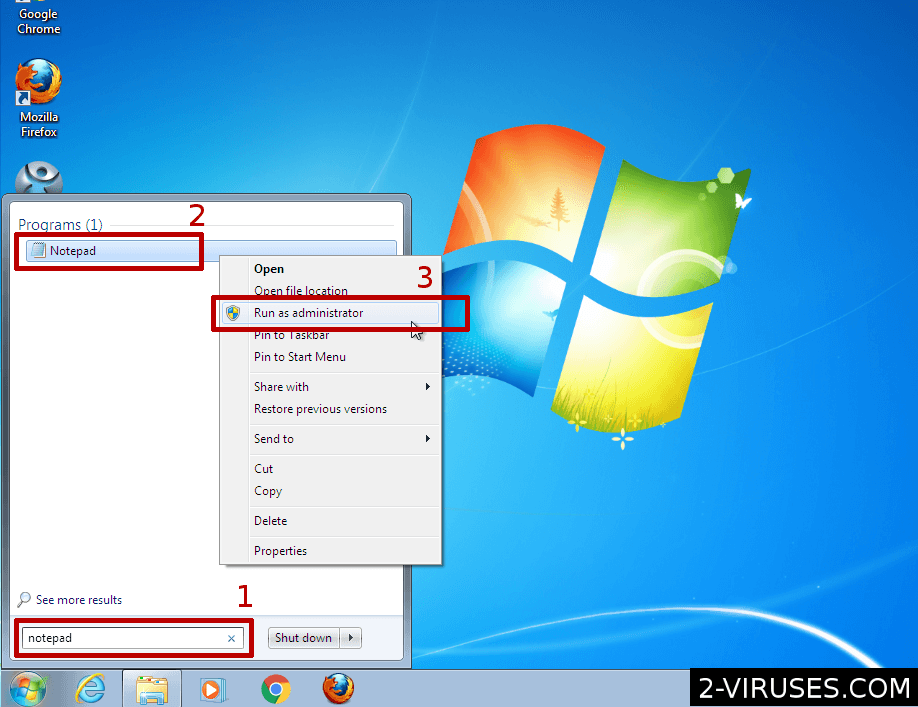
On Linux and Mac computers, the hosts file is on /etc/hosts. The file is editable by root user only, so you would need to either use root user (Linux) use Sudo or elevate ones access level to Administrator account.
Blocking undesirable sites with HOSTS file

- Open hosts file with your editor (the process is described in previous part)
- Enter 127.0.0.1
- Enter the address of a website you wish to block (e.g. www.bbc.co.uk) after a space
- Repeat the process
- Save the HOSTS file
Congratulations! You are now able to block undesirable sites with the HOSTS file.
FAQ
How is the HOSTS related to spyware?
Some of malware and spyware parasites hijack your HOSTS file in order to redirect you to malicious websites by changing the IP addresses of legitimate ones to websites of intruder’s choosing. We have a guide how to remove redirections caused by Hosts and other ways here.
Does blocking malicious sites offer the ultimate protection against spyware?
No. Although a well-edited HOSTS file does offer increased passive anti-spyware protection, the sheer amount of malicious websites is just way too large. You’ll have to constantly update your
HOSTS file with hundreds of new addresses if you want this method to offer complete protection.
Moreover, not every malware parasite hijacks the hosts file or uses site redirection to cause harm. Some are known to tamper with the registry, while others operate via backdoors.
There are a myriad ways for spyware to damage your system, and using the HOSTS file for malicious purposes is just one of them.
Also, this method does not protect from malware that connects to numeric (IP) addresses directly.
We recommend using the latest versions of spyware removers in conjunction with edited HOSTS file for maximum anti-spyware protection.
Are there alternatives for hosts file editing manually?
There are some tools that use hosts file or DNS monitoring to increase security.
- Spybot S&D uses hosts file to block some adware sites. Currently, we do not recommend it due to slow scans, but it is a viable alternative.
- HP-Hosts is community-edited hosts file blocking various malicious and semi-malicious sites
- Open DNS manages and performs bad site block during DNS requests. This might be the best solution for common user.
- Majority of internet security suites have their own bad URL blockers. They are not as restrictive as HP-Hosts and managed by security professionals.